How to re-connect your Octopus Charge to Wi-Fi
If you've changed Wi-Fi router or internet provider, and your Octopus Charge has been disconnected from the internet, this is the guide for you. Follow the steps below to re-establish your Wi-Fi connection and get your Octopus Charge back online.
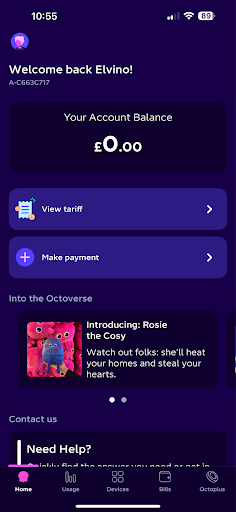
Step 1: Open the Octopus Energy app and tap the 'Devices' tab at the bottom of the screen

Step 2: Select 'Octopus Charge' from under 'My Devices'

Step 3: Tap the cog icon in the top right corner to open the Octopus charge settings
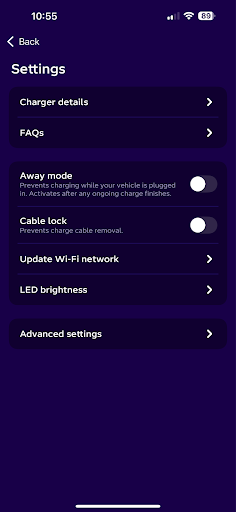
Step 4: Choose ‘Update Wi-Fi network’ from the list of options

Step 5: Follow the onscreen instructions to connect Octopus Charge to Wi-Fi.
Tip: You’ll need the mobile device you’re using to be on the same 2.4gHz network that you want your Octopus Charge to connect to.