Connecting your Sync Energy charger to the Octopus Energy app

Here’s how to connect your Sync Energy charger
First, you need to be an Octopus Energy customer. If you’re not one yet, you can sign up here.
You also need to be on our Intelligent Octopus Go tariff - you can switch tariff in two clicks here.
Before starting, make sure that:
You have set your charger setup in the Sync Energy app
You know your Sync Energy login details
Your charger is connected to the internet
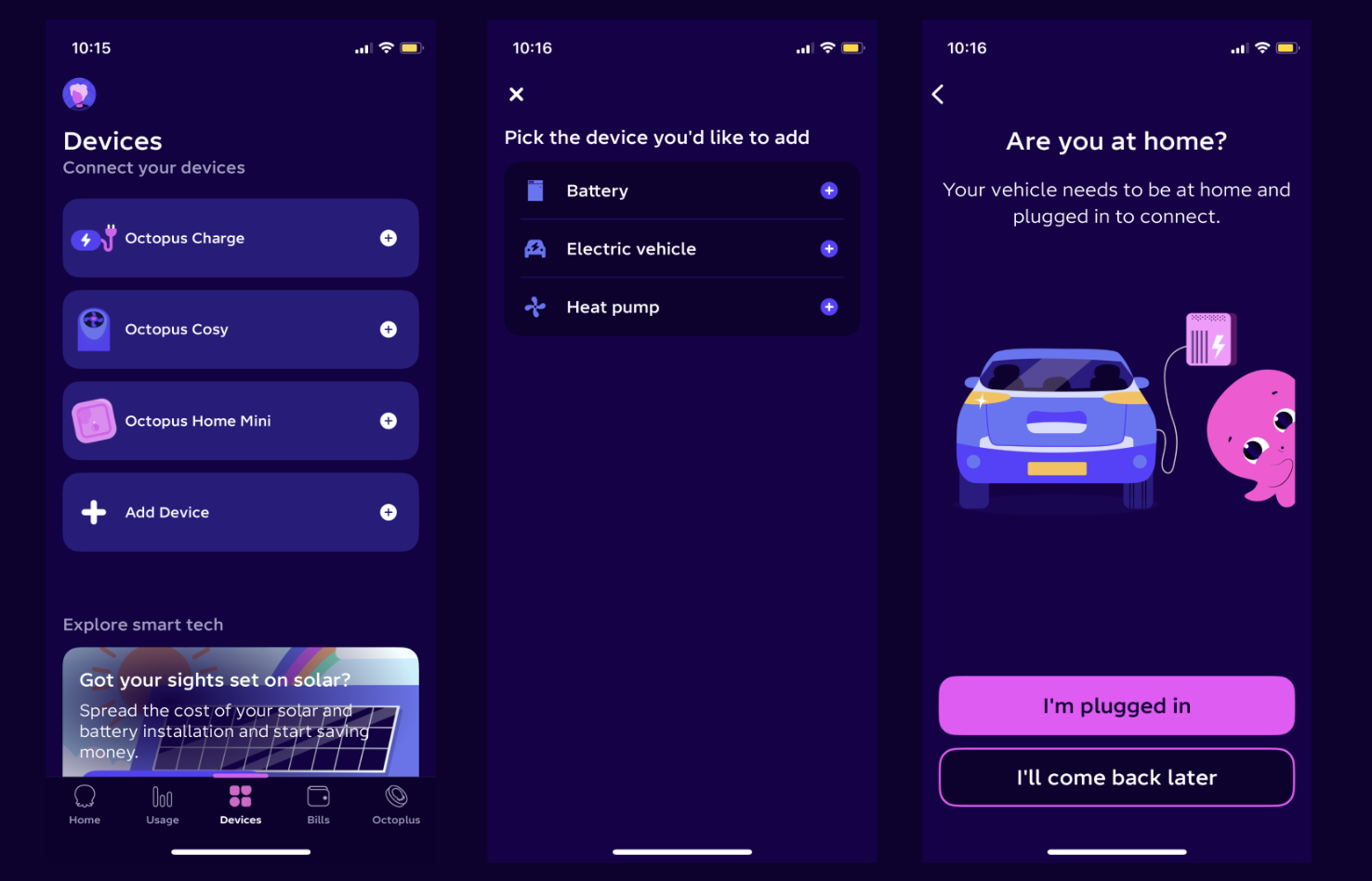
Step 1: Open the Octopus Energy app
Open the Octopus Energy app and click 'Devices'.
Tap on 'Add device' and then 'Electric vehicle'.
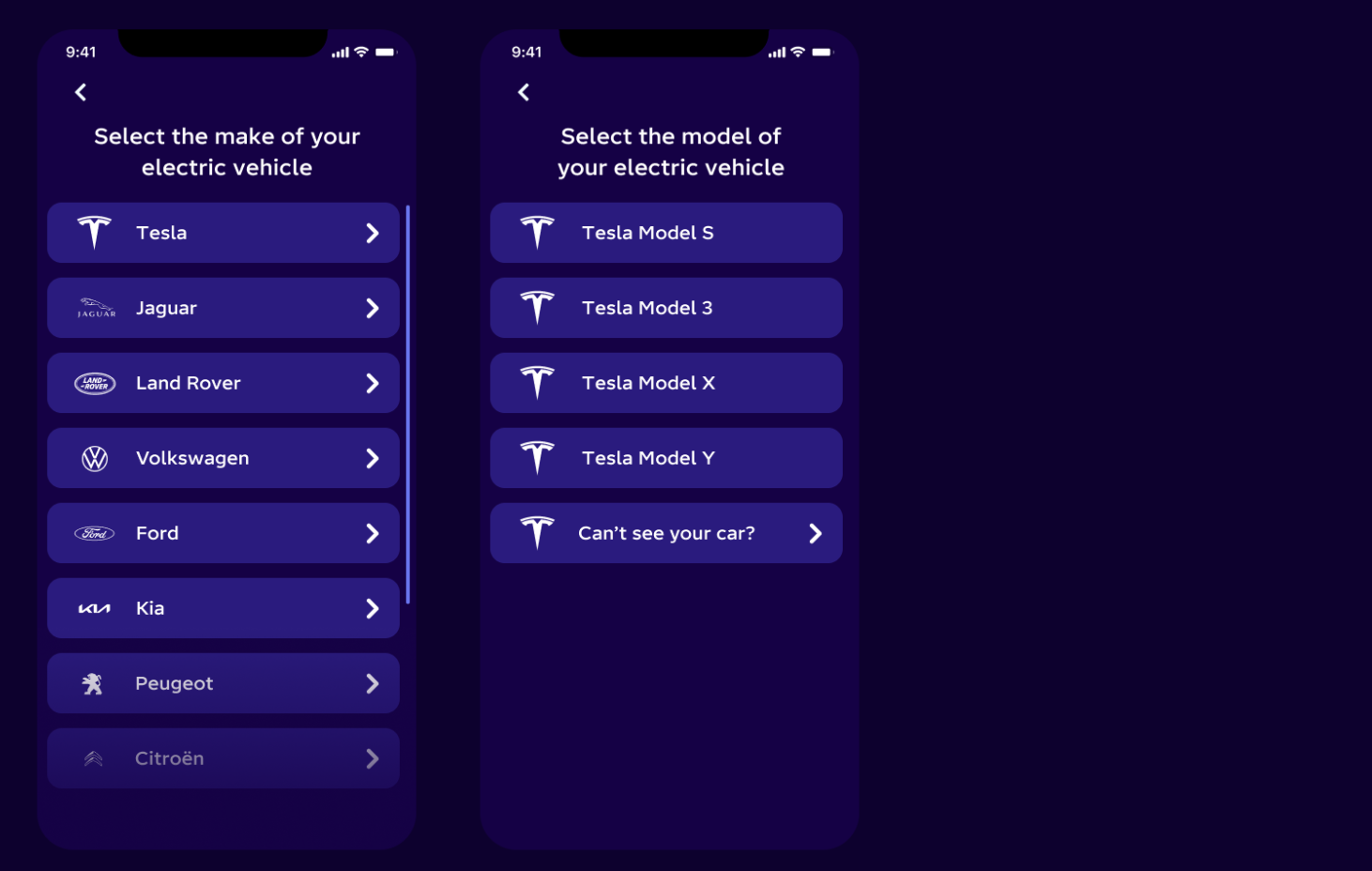
Step 2: Select your EV make and model.
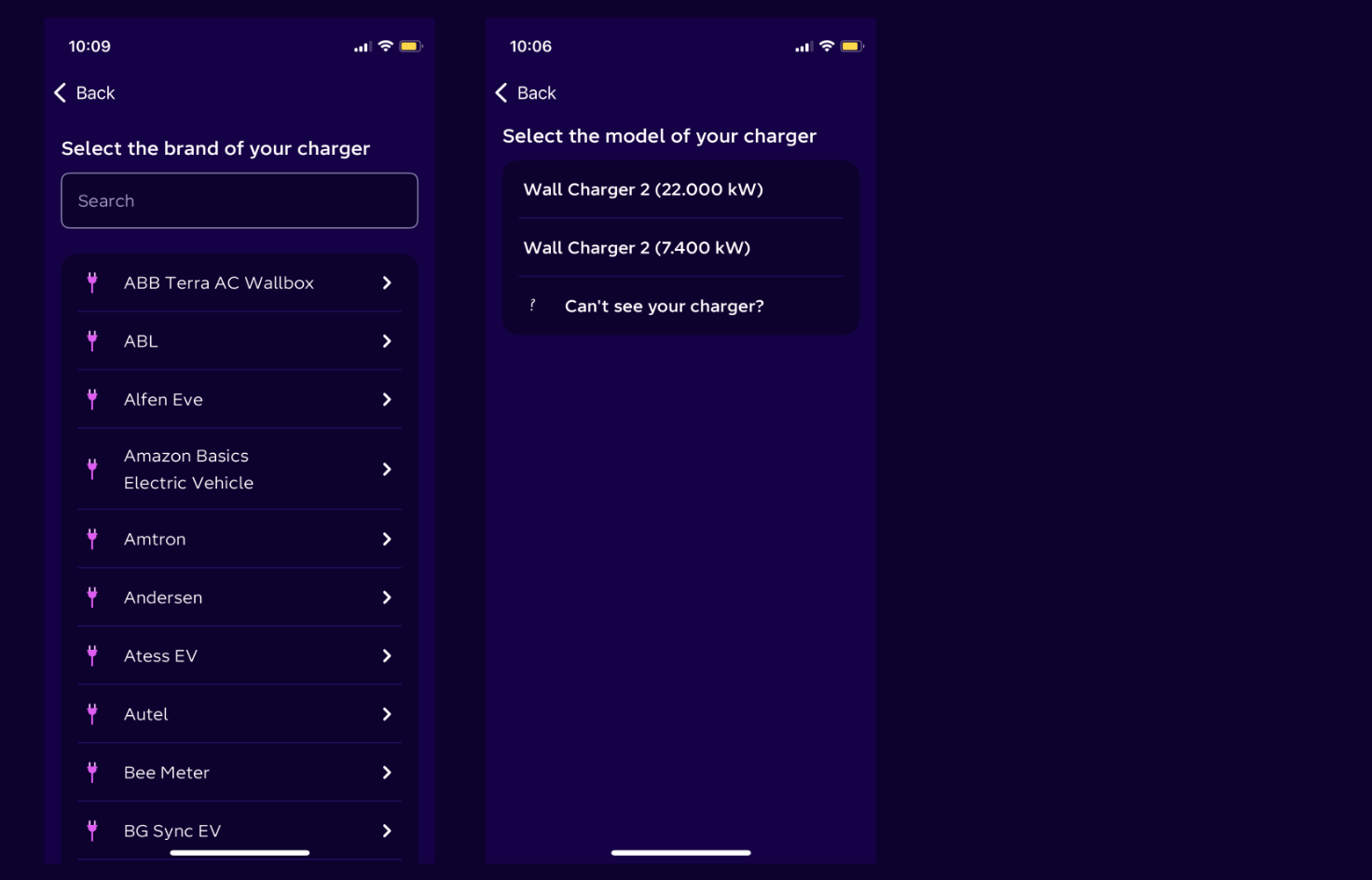
Step 3: Select your charger
For Sync Energy, type 'Sync Energy' into the search bar and select the model that you have installed.
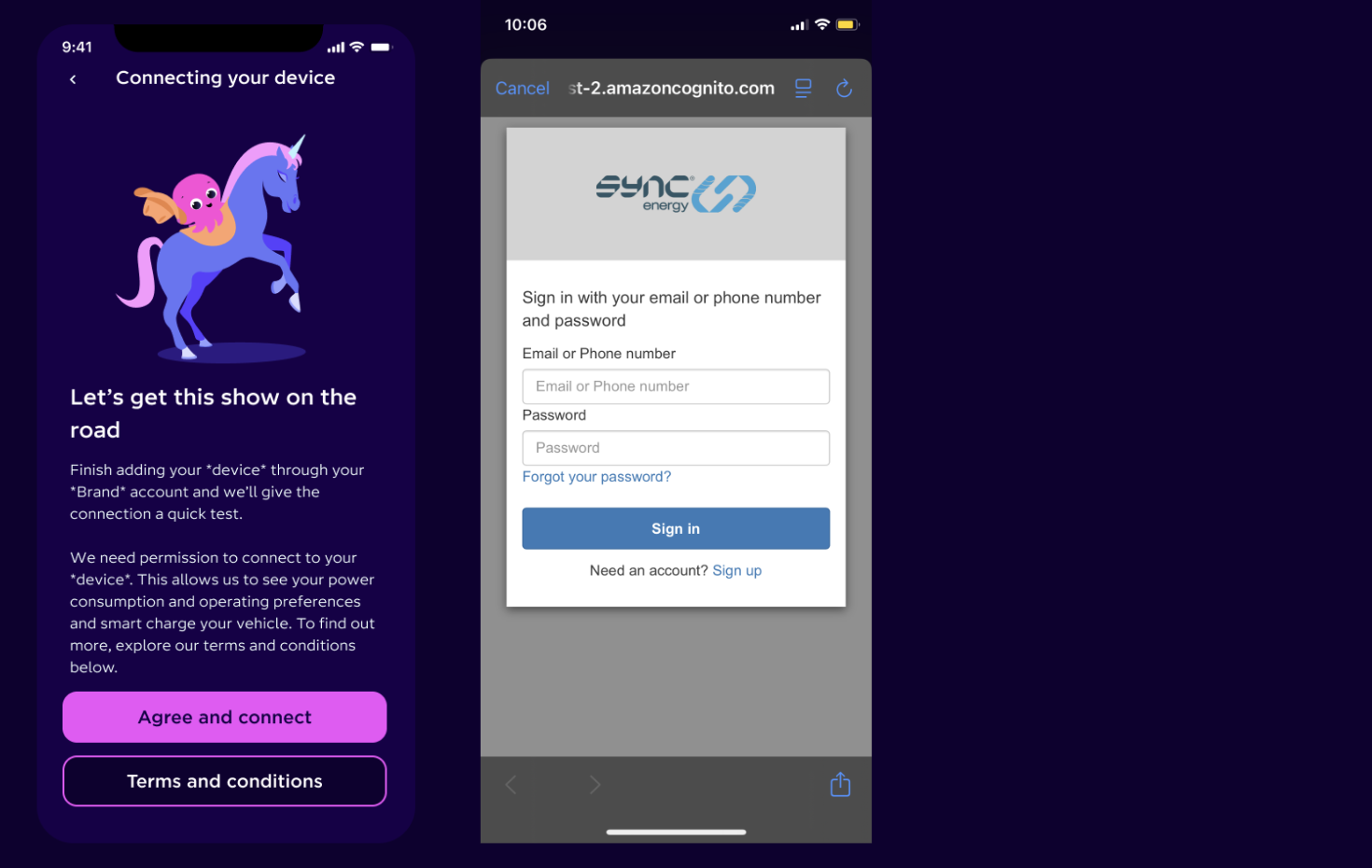
Step 4: Connect your Sync Energy charger
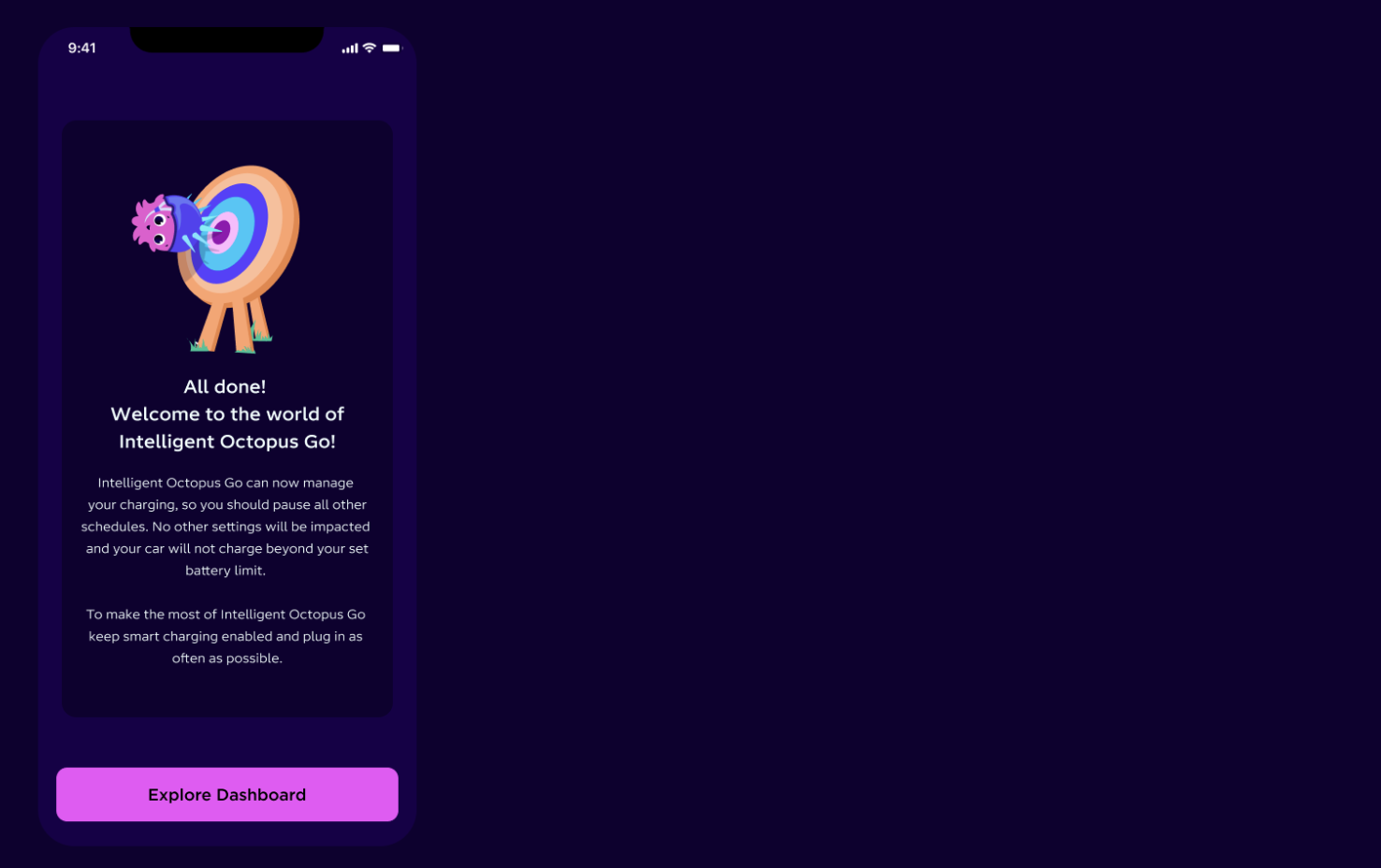
Success: Welcome to smart charging!
Congratulations, you've now connected your Sync Energy charger to the Octopus Energy app.
Tap 'Explore Dashboard' to set your charging preferences.
FAQs
To disconnect your Sync Energy device from the Octopus Energy app, you'll need to head to the Sync Energy app. Once there, you'll see a page that says 'This charger has been set up to use Octopus Energy as the charging app'.
Tap 'Transfer charger back to Sync Energy' to disconnect the charger.
Please note: if you disconnect your Sync Energy charger & you are on Intelligent Octopus Go, you'll need to reconnect within 7 days in order to stay on the tariff.
Component could not be found for blok wagtailPageInfo! Is it configured correctly?
Published on

Philip Steele
Future Technologies Evangelist