How to connect your Ohme to the Octopus Energy app

First, you need to be an Octopus Energy customer. If you’re not one yet, you can sign up here.
You also need to be on either the Intelligent Octopus Go tariff- you can switch tariff in two clicks here
Or our Intelligent Drive Pack tariff- which you can subscribe to here.
Once you switch tariff, you'll have 7 days to connect your Ohme to the Octopus Energy App.
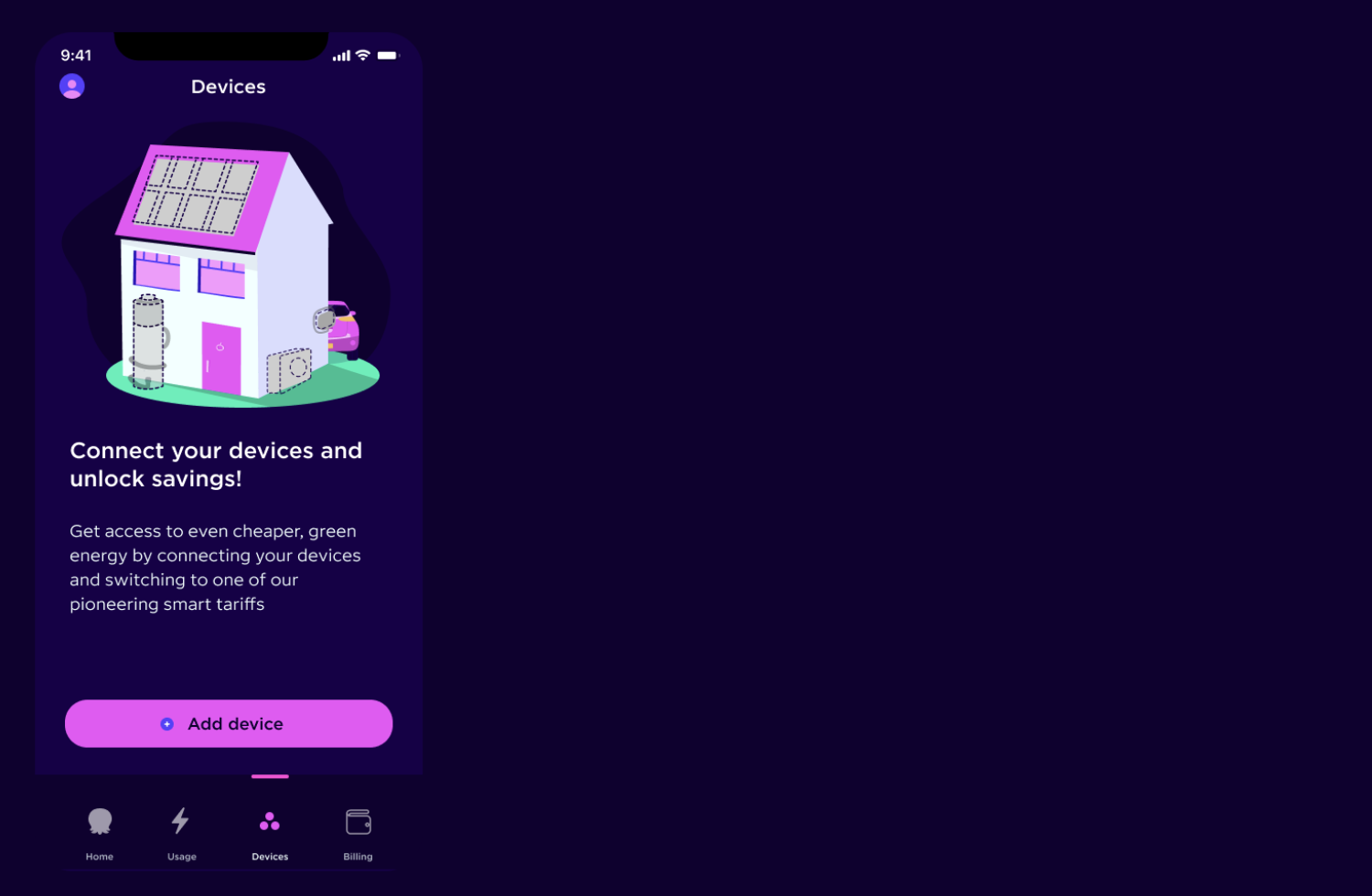
Step 1: Open the Octopus Energy app.
Go to the 'Devices' tab and press 'Add device'.
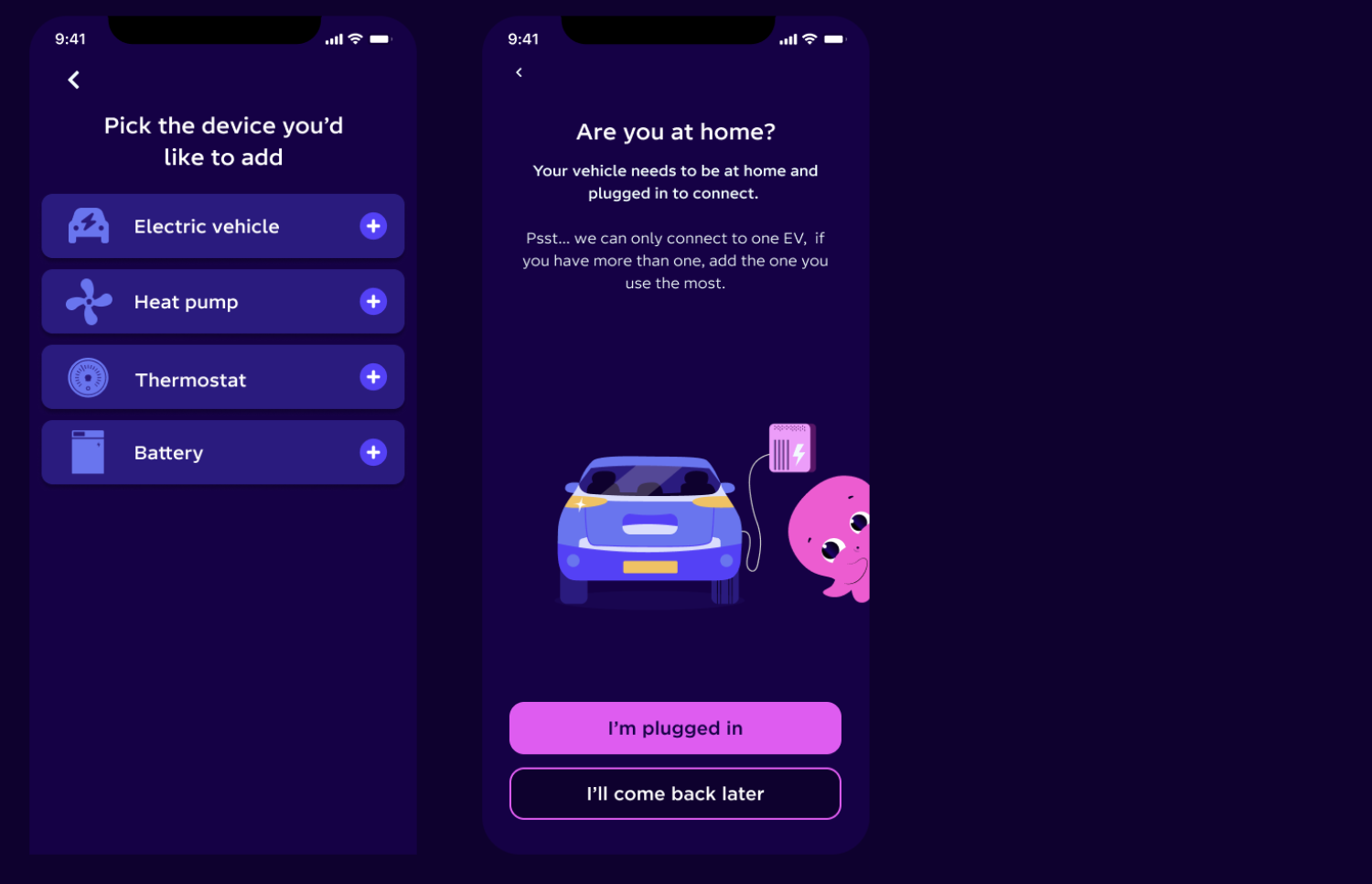
Step 2: Select the device you’d like to integrate with.
For your Ohme, select 'Electric vehicle'.
You'll be asked if you are at home with your EV plugged in, make sure this is the case before continuing. Your car needs to be plugged in, but not charging.
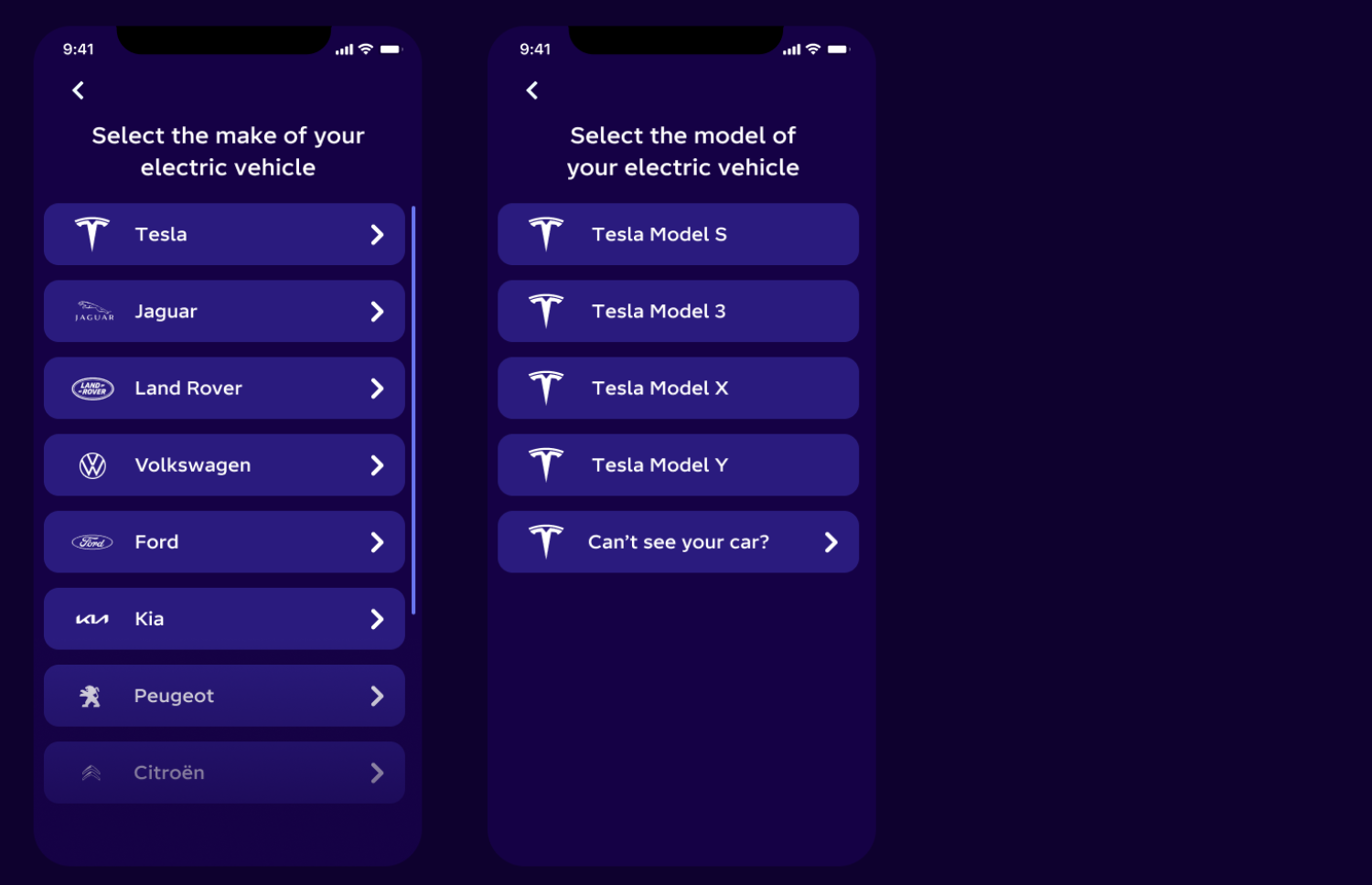
Step 3: Select your EV make and model.
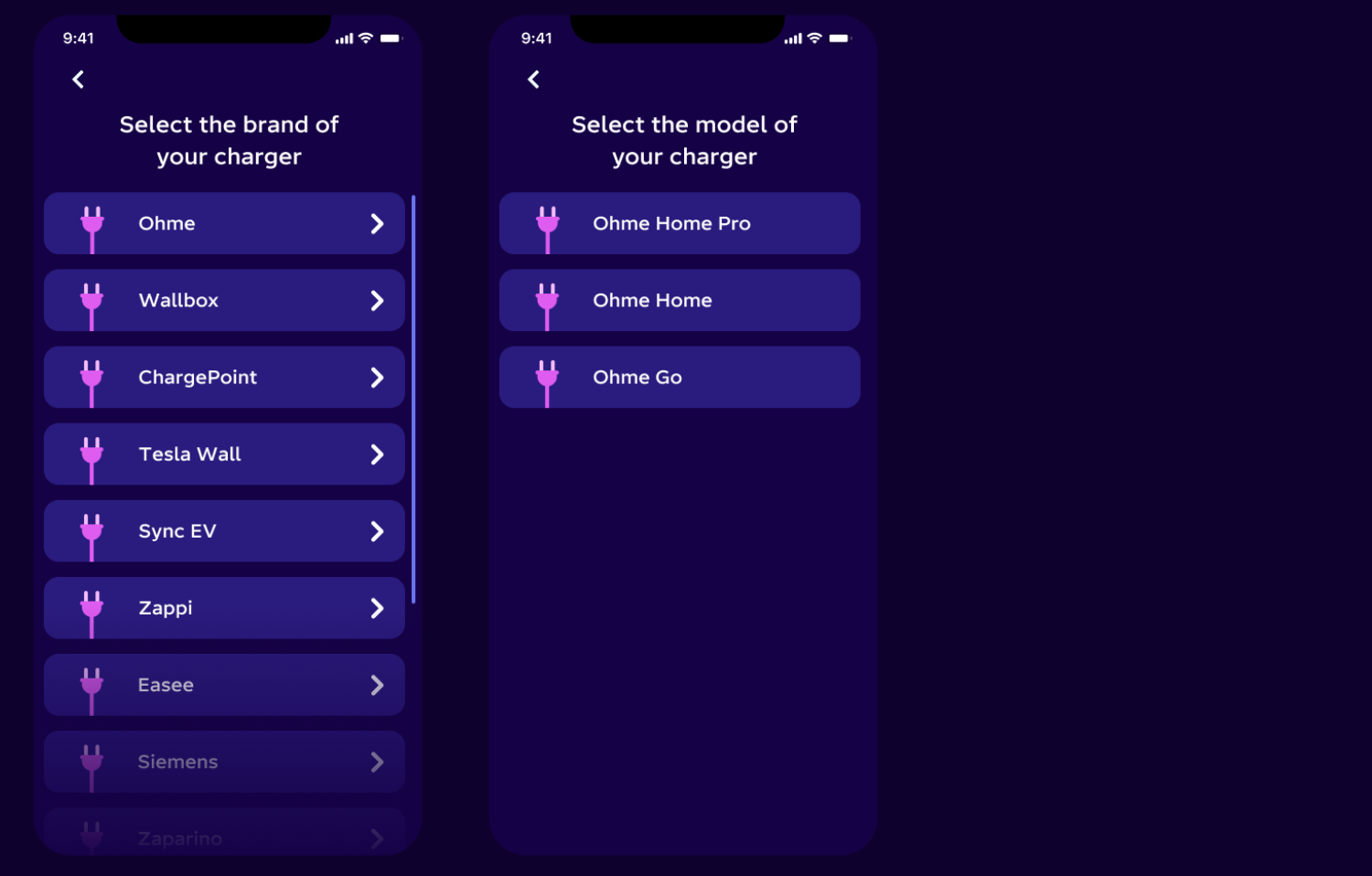
Step 4: Select your Ohme model.
Select 'Ohme' from the dropdown and select your model.
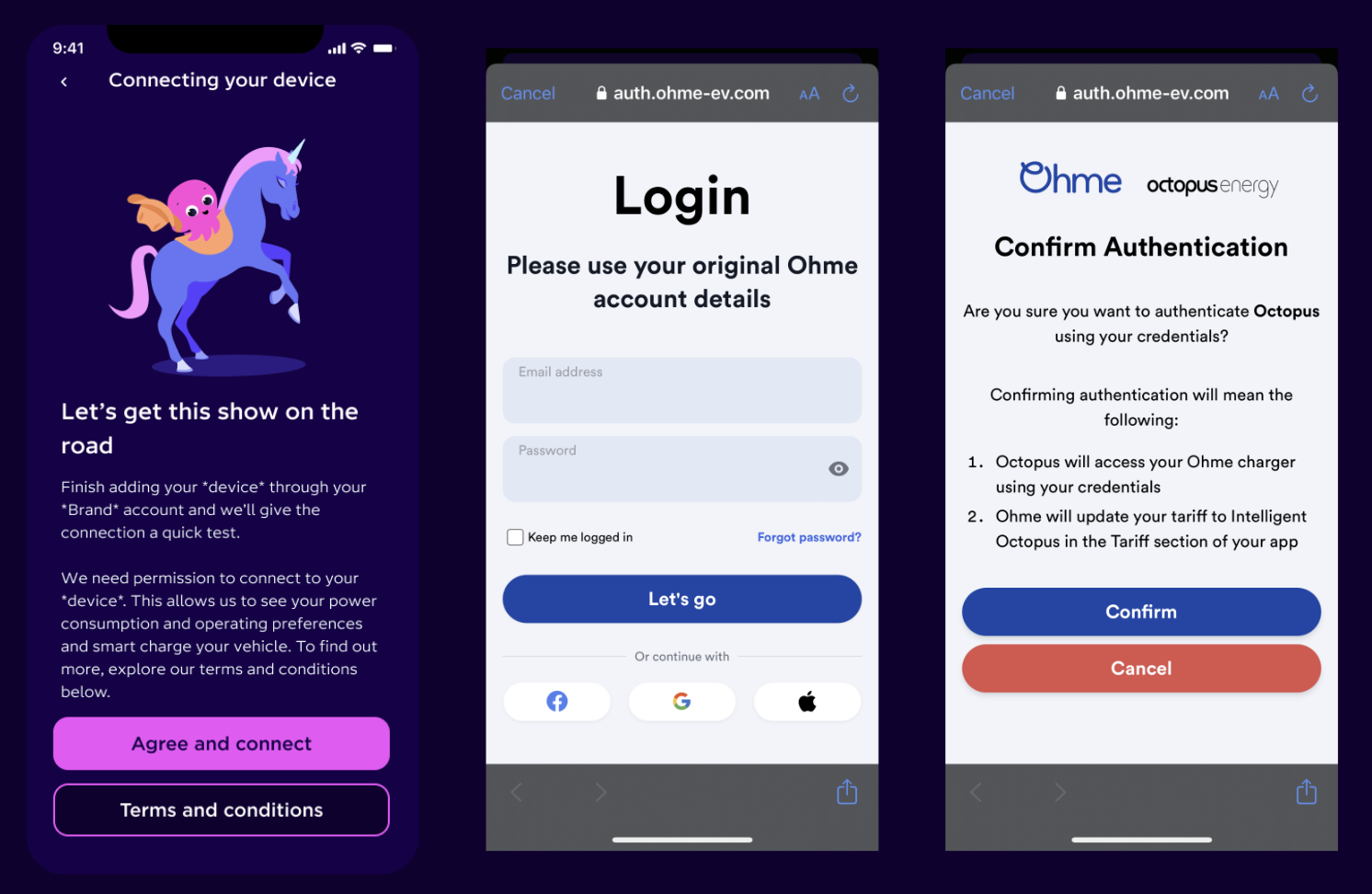
Step 5: Connect your Ohme
We now need to connect to your Ohme to make sure we can control it and schedule your charging.
If you are happy with the T&Cs, tap 'Agree and connect' and then sign in to your Ohme account.
Once logged in, you will be asked to select the charger that you'd like to link and then tap 'Continue'.

Step 6: Your Ohme is connected!
Your Ohme is now connected - press 'Explore Dashboard' to get charging.
Please note: please set your charge preferences in the 'Ohme' app.
Next steps
We’re continuing to develop the integration between Intelligent Octopus Go and Ohme. To get the most out of your charging there's a few important things to note.
You'll need to use the Ohme app to control your charging; after you've signed up, you’ll see a new devices page in your Octopus app with an option to ‘Go to Ohme’.
Check your charger is online via the charging screen of the Ohme app. If your charger is offline, you'll be billed at peak rate.
Ensure Dynamic Charging is on with the amount of charge you’d like to add or the target you want to reach and a Ready by time set for the following morning. Ohme and Octopus will work to charge at the cheapest and greenest times to help you meet your charging goal.
The Ohme app's price cap feature should be switched off, as all smart charging will be billed at the off-peak rate, even if Ohme has scheduled to charge outside the 23:30-05:30 window.
To override smart charging and get Ohme to charge as quickly as possible tap Max Charge: Any charge added during a Max Charge in peak times will be billed at the peak rate.
FAQs
Your can disconnect your Ohme charger from Intelligent Octopus Go using the Octopus app:
Tap the devices tab at the bottom of the screen & then select your Ohme charger
Tap the settings cog in the top right corner
Scroll down and tap ‘Disconnect device’ and confirm
This will disconnect your Ohme device from Intelligent Octopus Go
You will then be able to add a device again right away.
If you have multiple routines this shouldn't cause any major issues. However, for now we suggest having just one active routine, and let Intelligent Octopus Go do the work in the background.
Ensure Dynamic Charging is on with the amount of charge you’d like to add or the target you want to reach and a 'Ready by time' set between 4am - 11am.
The price cap feature should be switched off as all smart charging will be billed at the lower rate, even if Ohme has scheduled to charge outside the off-peak hours.
To override smart charging and get Ohme to charge as quickly as possible tap Max Charge. Any charge added during a Max Charge in peak times will be billed at the peak rate.
In order to smart charge, your Ohme charger must be online with Dynamic charging enabled. If you find your device is offline prior to plugin, you can ‘powercycle’ the charger to assist with bringing it back online again. For more information about performing a ‘powercycle’ see the support guide My charger is offline.
Note: any ‘offline’ charging during peak times will not be considered smart charging and will be billed at the peak rate.
In this phase of the integration, the cost of charge will not be accurate for Intelligent Octopus Go customers.
To see how much you’ve spent, please see your latest Octopus Energy bill.
Improving the accuracy of the cost of charge is a priority as this partnership with Ohme continues.
All charging billing will be handled by Octopus Energy, just like how you’re currently billed for your home charging.
An EV charged on Intelligent Octopus Go could save you £100s on your fuel costs vs a petrol car.
Use our EV savings calculator to compare today's fuel costs at your local petrol station to current home charging costs on Intelligent Octopus Go and get an estimate for how much you'd save. Octopus Charge is designed to work with Intelligent Octopus Go and many other chargers and EVs are compatible, too. Check if you're eligible for Intelligent Octopus Go here.
Save up to 85% vs public charging when you power up at home with Intelligent Octopus Go.
A slow or fast charge (<50 kWh) with one of the UK’s public charging points costs an EV driver 54p/kWh on average (last checked June 2026). With Intelligent Octopus Go, you smart charge from only 7.6p/kWh and could save 85%.
1 - 7.6/54 = 0.85 or 85%
Charge for up to 70% less than average price cap rates.
With Intelligent Octopus Go, you can smart charge eligible cars from only 7.6p/kWh. The average electricity unit rate of a standard variable tariff, based on the October 2026 Ofgem energy price cap for customers paying by direct debit, is 26.32p/kWh. This represents a saving of 71% compared to the average price cap unit rate (1- 7.6/26.32 = 0.71 or 71%).
Please note that savings apply to unit rates only and exclude standing charges. Standard variable rates vary by region, so your actual percentage saving may vary depending on where you live. Check the price cap for your region here.
The UK's most popular EV tariff
In their latest State of the market report, Ofgem shared that 653k domestic customers were on a Smart Time of Use EV tariff in July 2025. More than half were with Octopus, and the majority of them charged with Intelligent Octopus Go.
Last year, our customers typically saved £771 compared to our standard tariff
Over the last year (May 2025 to April 2026), customers on our fixed Intelligent Octopus Go tariff typically saved £771 compared to our standard variable tariff, Flexible Octopus. Calculations are based on comparing actual half-hourly consumption and costs on Intelligent Octopus Go against the costs the customer would have incurred for that same consumption on our Flexible Octopus tariff.
Savings for individual homes vary based on how much electricity you use for your house and EV, and how much you shift towards off-peak hours. Get a quote to compare your rates.
Trusted and recommended by thousands of happy customers
Based on feedback from 4,427 customers who had an EV charger installed between 25th January and 24th March 2026, 81% gave a 9 or 10 rating when asked how likely they were to recommend us to friends or family (on a scale of 1–10).
Published on

Philip Steele
Future Technologies Evangelist